piątek, 13 listopada 2020

Choose right application for containerization

While working with customers quite offen I come across the challenge of selecting the best application candidates for containerization and OpenShift onboarding. 

To solve this challenge typically I take following path:

1. First we create with the client wide list of applications they think will benefit from the containerization from business or technology perspective.

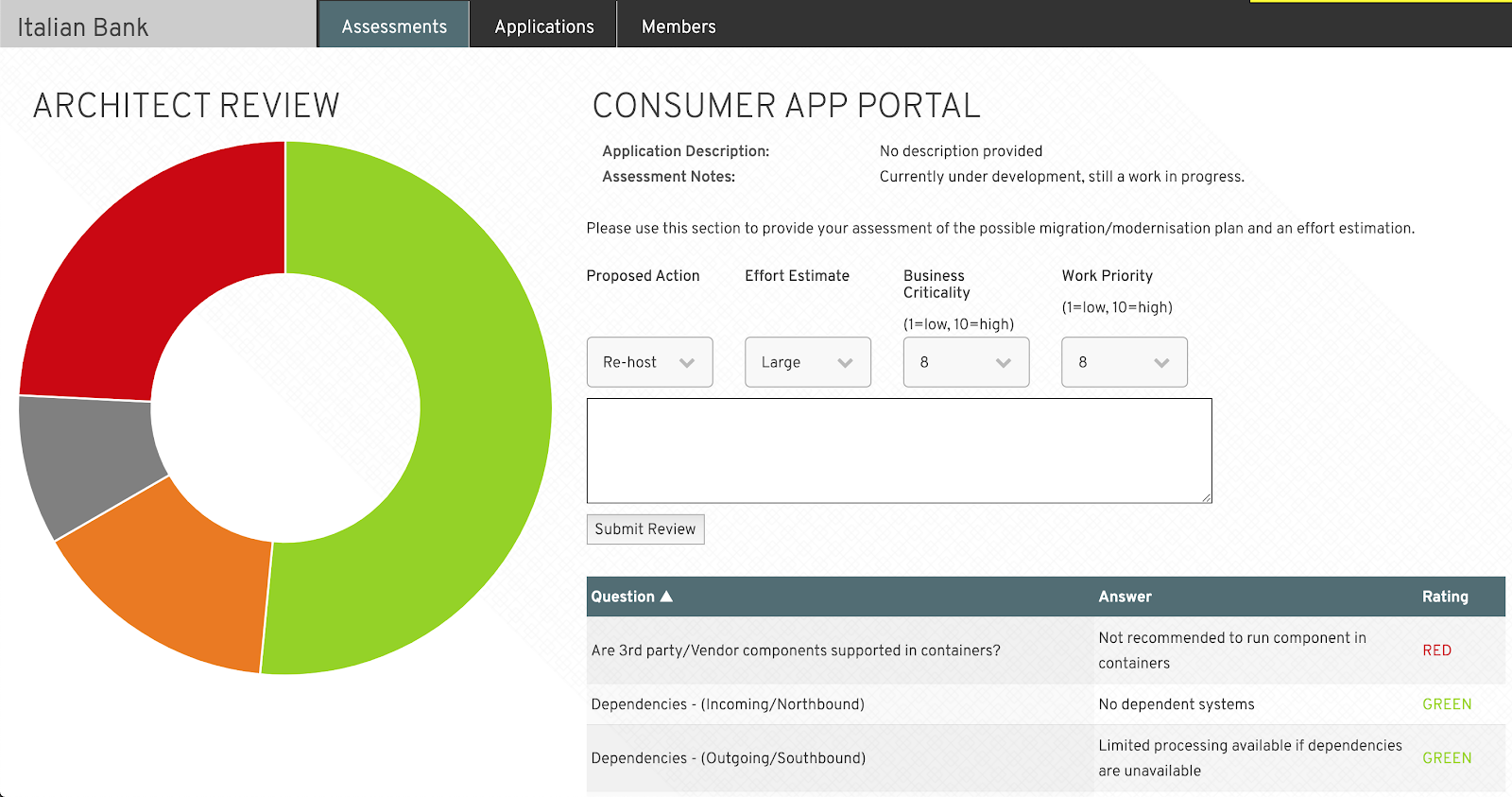
2. Secondly we use Pathfinder tool to determine an applications suitability for running on OpenShift/Kubernetes.

Here is typical application assessment flow:


Application assessment filled for each analyzed application


Architect review to give final application assessment


Application landscape report to visualize application migration suitability

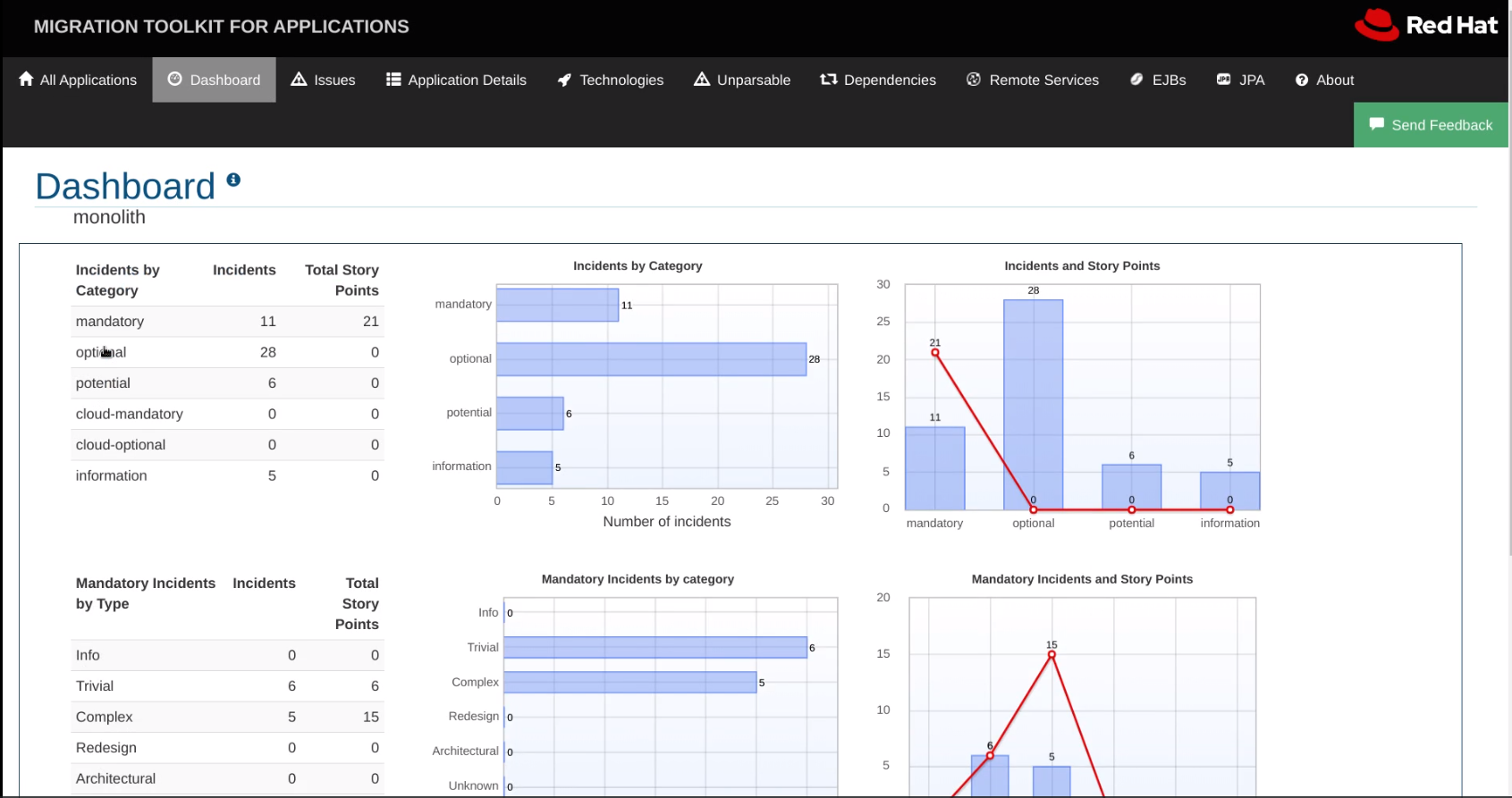
3. Moving forward we use Migration toolkit for Applications (MTA) to analyze source code of selected applications to determine what needs to be changed in the application code and how much effort this will require. 

Here is typical appllication code analysis flow. Screenshot are taken from CodeReady Workspaces IDE with installed MTA Visual Studio Code extension:


Git clone application source code and run report


Analyze generated report: effort estimation


Analyze generated report: issues list


Fix the issues in your favourite IDE

piątek, 2 października 2020

Verifying container images signatures in OpenShift 4 part 2

This post is an follow up to my previous post on the same topic. This time I'd like to show you how you can configure OpenShift 4 to verify container images signatures signed using custom gpg keys. 

When you sign your image with your gpg key you need to remember to store signature on the registry server (web server) which will be accessible from OpenShift cluster worker nodes.

When you sign your image using skopeo i.e:

$ skopeo copy --sign-by jstakun@example.com  registry.redhat.io/rhscl/httpd-24-rhel7:2.4 quay.io/jstakun/httpd-signed:2.4

image signature will be saved by default in subdirectory of /var/lib/atomic/sigstore. You need to make sure this signature is copied to registry server (web server) with the same directory structure.

Once this is done you can follow this steps to verify image signature:

1. Create base64 encoded /etc/containers/policy.json file:

$ cat << EOF | base64
{
  "default": [
    {
      "type": "insecureAcceptAnything"
    }
  ],
  "transports":
    {
      "docker-daemon":
        {
          "": [{"type":"insecureAcceptAnything"}]
        },
      "docker":
        {
          "registry.redhat.io": [
            {
              "type": "signedBy",
              "keyType": "GPGKeys",
              "keyPath": "/etc/pki/rpm-gpg/RPM-GPG-KEY-redhat-release"
            }],
          "registry.access.redhat.com": [
            {
              "type": "signedBy",
              "keyType": "GPGKeys",
              "keyPath": "/etc/pki/rpm-gpg/RPM-GPG-KEY-redhat-release"
            }],
          "quay.io/jstakun/httpd-signed": [
            {
              "type": "signedBy",
              "keyType": "GPGKeys",
              "keyPath": "/etc/pki/rpm-gpg/jstakun-pub"
            }]
        }
    }
}
EOF

2. Create base64 encoded /etc/containers/registries.d/redhat.yaml file 

$ cat << EOF | base64
docker:
  registry.access.redhat.com:
    sigstore: https://access.redhat.com/webassets/docker/content/sigstore
  registry.redhat.io:
    sigstore: https://access.redhat.com/webassets/docker/content/sigstore
EOF

3. Create base64 encoded /etc/containers/registries.d/httpd-signed.jstakun.quay.io.yaml file. This is where you need to set the url of your registry server (web server) hosting your images signatures.

$ cat << EOF | base64
docker:
  quay.io/jstakun/httpd-signed:
    sigstore: http://my-web-server.example.com:8000
EOF

4. Create URL encoded file containing your gpg public key exported using following command:

$ gpg --output pubring.asc --armor --export jstakun@example.com

5. Create machine config object in your OpenShift 4 cluster using output of the above commands as files contents source values like in example below.

$ echo "---
apiVersion: machineconfiguration.openshift.io/v1
kind: MachineConfig
metadata:
  labels:
    machineconfiguration.openshift.io/role: worker
  name: 20-image-signature-verify
spec:
  config:
    ignition:
      version: 2.2.0
    storage:
      files:
      - contents:
          source: data:text/plain;charset=utf-8;base64,ewogICJkZWZhdWx0IjogWwogICAgewogICAgICAidHlwZSI6ICJpbnNlY3VyZUFjY2VwdEFueXRoaW5nIgogICAgfQogIF0sCiAgInRyYW5zcG9ydHMiOgogICAgewogICAgICAiZG9ja2VyLWRhZW1vbiI6CiAgICAgICAgewogICAgICAgICAgIiI6IFt7InR5cGUiOiJpbnNlY3VyZUFjY2VwdEFueXRoaW5nIn1dCiAgICAgICAgfSwKICAgICAgImRvY2tlciI6CiAgICAgICAgewogICAgICAgICAgInJlZ2lzdHJ5LnJlZGhhdC5pbyI6IFsKICAgICAgICAgICAgewogICAgICAgICAgICAgICJ0eXBlIjogInNpZ25lZEJ5IiwKICAgICAgICAgICAgICAia2V5VHlwZSI6ICJHUEdLZXlzIiwKICAgICAgICAgICAgICAia2V5UGF0aCI6ICIvZXRjL3BraS9ycG0tZ3BnL1JQTS1HUEctS0VZLXJlZGhhdC1yZWxlYXNlIgogICAgICAgICAgICB9XSwKICAgICAgICAgICJyZWdpc3RyeS5hY2Nlc3MucmVkaGF0LmNvbSI6IFsKICAgICAgICAgICAgewogICAgICAgICAgICAgICJ0eXBlIjogInNpZ25lZEJ5IiwKICAgICAgICAgICAgICAia2V5VHlwZSI6ICJHUEdLZXlzIiwKICAgICAgICAgICAgICAia2V5UGF0aCI6ICIvZXRjL3BraS9ycG0tZ3BnL1JQTS1HUEctS0VZLXJlZGhhdC1yZWxlYXNlIgogICAgICAgICAgICB9XSwKICAgICAgICAgICJxdWF5LmlvL2pzdGFrdW4vaHR0cGQtc2lnbmVkIjogWwogICAgICAgICAgICB7CiAgICAgICAgICAgICAgInR5cGUiOiAic2lnbmVkQnkiLAogICAgICAgICAgICAgICJrZXlUeXBlIjogIkdQR0tleXMiLAogICAgICAgICAgICAgICJrZXlQYXRoIjogIi9ldGMvcGtpL3JwbS1ncGcvanN0YWt1bi1wdWIiCiAgICAgICAgICAgIH1dCiAgICAgICAgfQogICAgfQp9Cg==
        filesystem: root
        mode: 420
        path: /etc/containers/policy.json
      - contents:
          source: data:text/plain;charset=utf-8;base64,ZG9ja2VyOgogIHJlZ2lzdHJ5LmFjY2Vzcy5yZWRoYXQuY29tOgogICAgc2lnc3RvcmU6IGh0dHBzOi8vYWNjZXNzLnJlZGhhdC5jb20vd2ViYXNzZXRzL2RvY2tlci9jb250ZW50L3NpZ3N0b3JlCiAgcmVnaXN0cnkucmVkaGF0LmlvOgogICAgc2lnc3RvcmU6IGh0dHBzOi8vYWNjZXNzLnJlZGhhdC5jb20vd2ViYXNzZXRzL2RvY2tlci9jb250ZW50L3NpZ3N0b3JlCg==
        filesystem: root
        mode: 420
        path: /etc/containers/registries.d/redhat.yaml
      - contents:
          source: data:text/plain;charset=utf-8;base64,ZG9ja2VyOgogIHF1YXkuaW8vanN0YWt1bi9odHRwZC1zaWduZWQ6CiAgICBzaWdzdG9yZTogaHR0cDovL2VjMi0xMDctMjEtMjQ3LTQ3LmNvbXB1dGUtMS5hbWF6b25hd3MuY29tOjgwMDAK
        filesystem: root
        mode: 420
        path: /etc/containers/registries.d/httpd-signed.jstakun.quay.io.yaml
      - contents:
          source: data:,-----BEGIN%20PGP%20PUBLIC%20KEY%20BLOCK-----%0AVersion%3A%20GnuPG%20v2.0.22%20%28GNU%2FLinux%29%0A%0AmQENBF86aMQBCACfv0qeej1rLW9wQKSmSjDcALqZW6wz23at6l%2FD2lLlMOuZSns2%0A4YwZL0mV61j5gfr5D7vk40KMhmcu0jfHeth9TeEMCptFkAXMoY%2Boec8Dz%2Bp0YBuj%0A53ff36VbUjpGa%2BocX32yfTtG9Ez8rc%2BjQxbe1ecZEgVhi41Z7xZmXxR4MkX1YThp%0A%2FofSnULtVhvk1jV43s1ZOwcloe1iNIM8mq185tP67ZBeaLvHIFKiXFOP0w%2F19Jjb%0AhkzUMlaw2ggXVylDA2GVVKw0QJ3iMdt4i%2Fx8DlRFqRsa7Vrrryg08n0fTB4ZyvxB%0AGGJarUliJaavFDORbkA58XougJsT8d5RIaDxABEBAAG0JEphcm9zbGF3IFN0YWt1%0AbiA8anN0YWt1bkByZWRoYXQuY29tPokBOQQTAQIAIwUCXzpoxAIbAwcLCQgHAwIB%0ABhUIAgkKCwQWAgMBAh4BAheAAAoJEP3YZiiMOKUTUwUH%2F3%2BiRlZk1idLk1tntGSg%0AaO4CvhSz8dlC%2Bt062ccPMYVXOgLv%2FCfI8gwpYmLKMieZLeJVlWN7gTuwsFSlAdqn%0AWKBm1JA2MsJ08b0jtYOG6xMKeScLgim0zX%2BdoK8ljrB4%2FvijsW7Vk5ykcyxDogK0%0AOyPAGD%2FNQUFfUsPFFdaMOGaxhpswh1VKZQ0NL67hAi2tASsufr3FdgF3%2B0ELSKQB%0A9gX4thaBN5wOYNUZlLXbGRipxi%2BrcksgaQj0DMUaqRMWpfRXrbTnimCrr0cNvr%2Bf%0AdFljfbkjoL4VXCUics%2BdpKpj3iEDOJBTBkAy84nQExNfh1nJJlrVsnfHVx%2FM9czF%0A3VC5AQ0EXzpoxAEIAK40kfShcTxrR7QljNBrAywaSflgrKOT9DXv22%2FXvo0wHSPc%0AfVkzWkaCwH7%2F4P4WOMpZfhr1QKw8GA3jvn7zJ1m4zVwe9UZsmPPQR8pCRtuelpb%2B%0A1O6LhOjNbqc58rgFsV95ZcSQoJV%2BSK3HLKjUyzzHgby%2BOPmOIuj5kNHg9juAcAwH%0A%2FAKrIhPV5Kvpxo334ZgmZAgAdEuPKtRcpsW62YU0i9nlaR82eWMj6mxk0KEpVxww%0AGleke2mFvroW1RegADJta78W6wvxZpQgi9D%2B9lZgr5jlm0Q%2F05egYcAHve4hB4vw%0AJNSuNMUtaxo7bpf4sNavSHLanWbeIkAhtgndrH0AEQEAAYkBHwQYAQIACQUCXzpo%0AxAIbDAAKCRD92GYojDilE%2BD2B%2FwJUkBfBlzlVgMZ1ahXnQzRzU%2B3h8pSlQcVeaD5%0AgNfdOmVHd0KYZUhHsoY4uJqa590Spl3JJL72%2BG5U2qFo4gO49TZS18dPExPIFFJ8%0AsHukXbjuHXfEVBOUuU9OkBna2d1A61RswigfNXFao39Hvzudg7zQLeN%2B59mZsnKO%0AAFuFxPdY9F9xMf2%2F5%2FLdK5M%2BwBfl%2BjS0ca0I5IV32vKJjEJpbnlKfyblULDuSjsC%0Ag4snOoO0JiqM4KnmFm0la7VjXQ4hU7NdCCT4pimDLyG4Q%2FbYPcYiMVFTZX%2F6uxeI%0AlHHwH%2FPenLgSxyeWSw6bdwy1zyav%2BxUPA22T49a7eLRAEGuG%0A%3D07nQ%0A-----END%20PGP%20PUBLIC%20KEY%20BLOCK-----
        filesystem: root
        mode: 420
        path: /etc/pki/rpm-gpg/jstakun-pub
" | oc create -f - -n openshift-config
This should trigger automatically rolling upgrade of your worker nodes. You should see worker nodes being restarted one by one in rolling fashion. You can also check if your Machine Config Pool is in updating status. Please refer to my previous post for more details on how to do that.      

In order to test whether images signatures are verified I recommend to run podman on one of your OpenShift 4 cluster nodes:

$ podman --log-level debug run --rm --name test quay.io/jstakun/httpd-signed:2.4

In the output of this command you should see that before image is pulled image signature is downloaded and verified.


czwartek, 3 września 2020

Verifying container images signatures in OpenShift 4

In this article, I’ll demonstrate how to configure a container engine to validate signatures of container images from the Red Hat registries for increased security of your containerized applications. 

Images are signed using gpg keys hence you need to make sure public keys are stored on OpenShift 4 worker nodes. Fortunetally Red Hat images are signed with the same key as RHEL rpm packages, so the key is already present on worker nodes at /etc/pki/rpm-gpg/RPM-GPG-KEY-redhat-release. Furthermore images signatures are exposed on publically available registry server: https://access.redhat.com/webassets/docker/content/sigstore

Configuring Linux container tools to only run container images that pass signature checking is a two-step process:

  1. Create a YAML file under /etc/containers/registries.d that specifies the location of detached signatures for a given registry server.
  2. Add an entry to /etc/containers/policy.json that specifies the public GPG key that validates signatures of a given registry server.

In order to create or modify this files in OpenShift 4 worker nodes you'll need to create machine config containing this files in base64 encoded format:

$ cat << EOF | base64
{
  "default": [
    {
      "type": "insecureAcceptAnything"
    }
  ],
  "transports":
    {
      "docker-daemon":
        {
          "": [{"type":"insecureAcceptAnything"}]
        },
      "docker":
        {
          "registry.redhat.io": [
            {
              "type": "signedBy",
              "keyType": "GPGKeys",
              "keyPath": "/etc/pki/rpm-gpg/RPM-GPG-KEY-redhat-release"
            }]
        }
    }
}
EOF

$ cat << EOF | base64
docker:
  registry.redhat.io:
    sigstore: https://access.redhat.com/webassets/docker/content/sigstore
EOF
Using the base64 content of the above commands you can create machine config:

echo "---
apiVersion: machineconfiguration.openshift.io/v1
kind: MachineConfig
metadata:
  labels:
    machineconfiguration.openshift.io/role: worker
  name: 10-redhat-image-signature-verify
spec:
  config:
    ignition:
      version: 2.2.0
    storage:
      files:
      - contents:
          source: data:text/plain;charset=utf-8;base64,ewogICJkZWZhdWx0IjogWwogICAgewogICAgICAidHlwZSI6ICJpbnNlY3VyZUFjY2VwdEFueXRoaW5nIgogICAgfQogIF0sCiAgInRyYW5zcG9ydHMiOgogICAgewogICAgICAiZG9ja2VyLWRhZW1vbiI6CiAgICAgICAgewogICAgICAgICAgIiI6IFt7InR5cGUiOiJpbnNlY3VyZUFjY2VwdEFueXRoaW5nIn1dCiAgICAgICAgfSwKICAgICAgImRvY2tlciI6CiAgICAgICAgewogICAgICAgICAgInJlZ2lzdHJ5LnJlZGhhdC5pbyI6IFsKICAgICAgICAgICAgewogICAgICAgICAgICAgICJ0eXBlIjogInNpZ25lZEJ5IiwKICAgICAgICAgICAgICAia2V5VHlwZSI6ICJHUEdLZXlzIiwKICAgICAgICAgICAgICAia2V5UGF0aCI6ICIvZXRjL3BraS9ycG0tZ3BnL1JQTS1HUEctS0VZLXJlZGhhdC1yZWxlYXNlIgogICAgICAgICAgICB9XQogICAgICAgIH0KICAgIH0KfQo=
        filesystem: root
        mode: 420
        path: /etc/containers/policy.json
      - contents:
          source: data:text/plain;charset=utf-8;base64,ZG9ja2VyOgogIHJlZ2lzdHJ5LmFjY2Vzcy5yZWRoYXQuY29tOgogICAgc2lnc3RvcmU6IGh0dHBzOi8vYWNjZXNzLnJlZGhhdC5jb20vd2ViYXNzZXRzL2RvY2tlci9jb250ZW50L3NpZ3N0b3JlCg==
        filesystem: root
        mode: 420
        path: /etc/containers/registries.d/redhat.yaml
" | oc create -f - -n openshift-config
This should trigger automatically rolling upgrade of your worker nodes. You should see worker nodes being restarted one by one. You can also check if your Machine Config Pool is in updating status. Please refer to my previous post for more details on how to do that.
 
If you want to verifiy signatures of images signed with custom gpg keys the procedure will be a bit more complicated. First you'll need to sign the image using custom gpg key i.e. using skopeo copy --sign-by command, then you must store signature on custom registry server (web server), and finally define machine config similar to the above but with custom gpg public key file included (output of gpg --output pubring.asc --armor --export username@email). 
 
This is a great topic for yet another post!


poniedziałek, 15 czerwca 2020

Monitoring Quarkus microservice with built in OpenShift Monitoring stack


This post is follow up on my previous post about Quarkus microservices monitoring. This time I'll use built-in OpenShift Monitoring stack (Prometheus and Alertmanager) instead of installing project specific monitoring stack.

1. First we'll deploy to OpenShift 4 Quarkus microservice container which is based on following example source code.
$ oc login -u developer

$ oc new-project quarkus-msa-demo

$ oc new-app quay.io/jstakun/hello-quarkus:0.2 --name=hello-quarkus

$ oc expose svc hello-quarkus
2. In order to be able to monitor your own application services we need to enable this feature in OpenShift

2.1 Login as cluster admin
$ oc login -u kubeadmin

$ echo "---
apiVersion: v1
kind: ConfigMap
metadata:
  name: cluster-monitoring-config
  namespace: openshift-monitoring
data:
  config.yaml: |
    techPreviewUserWorkload:
      enabled: true
" | oc create -f -
2.2 Verify if user workload monitoring stack is running
$ oc get pod -n openshift-user-workload-monitoring
NAME                                   READY   STATUS    RESTARTS   AGE
prometheus-operator-744fc6d6b6-pkqnd   1/1     Running   0          2m38s
prometheus-user-workload-0             5/5     Running   1          83s
prometheus-user-workload-1             5/5     Running   1          2m27s
3. Create monitoring role and grant this role to developer user so that he can create application specific Prometheus Service Monitor
$ echo "---
kind: ClusterRole
apiVersion: rbac.authorization.k8s.io/v1
metadata:
  name: monitor-crd-edit
rules:
- apiGroups: ["monitoring.coreos.com"]
  resources: ["prometheusrules", "servicemonitors", "podmonitors"]
  verbs: ["get", "list", "watch", "create", "update", "patch", "delete"]
" | oc create -f -

$ oc adm policy add-cluster-role-to-user monitor-crd-edit developer
4. Create Prometheus Service Monitor which instructs Prometheus operator to deploy exporter scarping metrics from Quarkus microservice
$ oc login -u developer
$ echo "---
apiVersion: monitoring.coreos.com/v1
kind: ServiceMonitor
metadata:
  labels:
    k8s-app: prometheus-example-monitor
  name: prometheus-example-monitor
  namespace: quarkus-msa-demo
spec:
  endpoints:
    - interval: 5s
      port: 8080-tcp
  selector:
    matchLabels:
      app: hello-quarkus
" | oc create -f -
4.1 Now we'll call Quarkus microservice to quickly check if metrics are collected by Prometheus
$ ROUTE=$(oc get route -n quarkus-msa-demo | grep hello-quarkus | awk '{print $2}') && echo $ROUTE

$ while true;
curl $ROUTE/conversation
echo;   
do sleep .5;
done;
4.2 You can open OpenShift Web Console, login as developer user and go to Metrics tab in Developer Perspective under Monitoring View. In order to verify if metrics are collected you can create following example custom query: application_org_acme_quickstart_ConversationService_performedTalk_total


Alternatively you can also use command line:
$ TOKEN=$(oc sa get-token grafana-operator -n quarkus-msa-demo) && echo $TOKEN
$ URL=$(oc get route thanos-querier --template='{{.spec.host}}' -n openshift-monitoring) && echo $URL
$ METRIC=application_org_acme_quickstart_ConversationService_performedTalk_total

$ curl -k -H "Authorization: Bearer $TOKEN" https://$URL/api/v1/query?query=$METRIC

 4.3 At this point you can also create example Alert rule

$ oc apply -f conversation-service-highload-rule.yaml

After some time (5 minutes in this example rule) you can check whether alert is firing in OpenShift Web Console using follwing custom query:
ALERTS{alertname="ConversationHighLoad", alertstate="firing"}


You should also be able to find this alert in Alertmanager UI


5. Finally let's install Grafana and create Quarkus microservice Grafana Dashboard to visualize metrics stored in Prometheus

5.1 We must install Grafana Operator version 3.2+. As for now Grafana operator version 3.2+ is unavailable in OpenShift Operator Hub. Hence we'll install the operator manually from github:
$ oc login -u kubeadmin

$ oc project quarkus-msa-demo

$ oc create sa grafana-operator
$ oc adm policy add-cluster-role-to-user cluster-monitoring-view -z grafana-operator

$ oc create -f https://raw.githubusercontent.com/integr8ly/grafana-operator/master/deploy/roles/role.yaml
$ oc create -f https://raw.githubusercontent.com/integr8ly/grafana-operator/master/deploy/roles/role_binding.yaml

$ oc create -f https://raw.githubusercontent.com/integr8ly/grafana-operator/master/deploy/crds/Grafana.yaml
$ oc create -f https://raw.githubusercontent.com/integr8ly/grafana-operator/master/deploy/crds/GrafanaDataSource.yaml
$ oc create -f https://raw.githubusercontent.com/integr8ly/grafana-operator/master/deploy/crds/GrafanaDashboard.yaml

$ wget https://raw.githubusercontent.com/integr8ly/grafana-operator/master/deploy/operator.yaml
$ sed -i "s/grafana-operator:latest/grafana-operator:v3.3.0/g" operator.yaml
$ oc create -f operator.yaml

$ oc get pods
NAME                                READY   STATUS    RESTARTS   AGE
grafana-operator-6d54bc7bfc-tl5vw   1/1     Running   0          5m29s
5.2 Create example Grafana deployment
$ oc create -f grafana-deployment

$ oc expose svc grafana-service
5.3 Create Grafana DataSource
$ TOKEN=$(oc sa get-token grafana-operator) && echo $TOKEN

$ echo "---
apiVersion: integreatly.org/v1alpha1
kind: GrafanaDataSource
metadata:
  name: prom-grafanadatasource
  namespace: quarkus-msa-demo
spec:
  datasources:
    - access: proxy
      editable: true
      jsonData:
        httpHeaderName1: Authorization
        timeInterval: 5s
        tlsSkipVerify: true
      name: Prometheus
      secureJsonData:
        httpHeaderValue1: >-
          Bearer $TOKEN
      type: prometheus
      url: >-
        https://thanos-querier.openshift-monitoring.svc:9091
      isDefault: true
      version: 1
  name: my-prom-datasources.yaml
" | oc create -f -
5.4 Create example Grafana Dashboard
$ oc create -f grafana-dashboard.yaml
5.5 Test Grafana Dashboard.

Get Grafana route url:
$ echo http://$(oc get route | grep grafana | awk '{print $2}')
Login with default credentials: admin/admin and navigate to Conversation Service dashboard where you should see visualized metrics collected from Quarkus microservice.


czwartek, 9 kwietnia 2020

Processing Kafka topic with OpenShift Serverless service in 10 steps

In this post I'll describe how you can easily process Kafka topic messages using Serverless service in OpenShift 4.

1. First you'll need to install Red Hat Integration - AMQ Streams, OpenShift Serverless, Knative Eventing and Knative Apache Kafka operators. 
Please refer to OpenShift documentation on how to install operators using either OpenShift Web Console or oc command line interface.
In essence you'll need to login to the OpenShift cluster with cluster-admin credentials and install all 4 operators cluster wide.


If you want to install this demo quicky you can use this helm3 chart otherwise follow step by step instruction below.

2. Let's create project for our demo
$ oc new-project streams-serverless-demo
3. Create Kafka cluster using AMQ Streams Operator

Go to the list of installed operators available in the project created above and
Click on Red Hat Integration - AMQ Streams


Click on Create Instance link in Kafka box


You can keep default settings and click on Create button. Wait until Kafka cluster is up and running.


4.  Create Knative Eventing Kafka from Knative Apache Kafka Operator

Come back to list of installed operators and click on Knative Apache Kafka Operator.


Click on Create Instance link in Knative components for Apache Kafka box


Make sure to set bootstrapServers value to the name of your Kafka cluster bootstrap service. For default configuration this will be 'my-cluster-kafka-bootstrap:9092'. Click Create button.

5. Create Kafka topic from AMQ Streams Operator

Come back to list of installed operators and click on Red Hat Integration - AMQ Streams. Click on Create Instance link in Kafka Topic


You can keep default settings and click on Create button

6. For testing purposes create Kafka Bridge from AMQ Streams Operator

Come back to list of installed operators and click again on Red Hat Integration - AMQ Streams. Click on Create Instance link in Kafka Bridge


Make sure to set bootstrapServers value to the name of your Kafka cluster bootstrap service. For default configuration this will be 'my-cluster-kafka-bootstrap:9092'. Click Create button.

Before moving forward this is good time to send test message to Kafka topic
$ oc expose svc my-bridge-bridge-service
$ ROUTE=$(oc get route | grep my-bridge | awk '{print $2}')  && echo $ROUTE

$ curl -X POST $ROUTE/topics/my-topic -H 'content-type: application/vnd.kafka.json.v2+json' -d '{"records": [{"value": "hello from shadowman"}]}'
You should get following response:
{"offsets":[{"partition":0,"offset":0}]}
7. Create Knative Serving from OpenShift Serverless operator in knative-serving project

Please refer to OpenShift documentation on how to create Knative Service configuration.

8. Create Knative Service which will consume Kafka topic data

Come back to your project and create Serverless service
$ oc project streams-serverless-demo
$ cat <<EOF | oc apply -f -
apiVersion: serving.knative.dev/v1alpha1
kind: Service
metadata:
  name: myknativesink
spec:
  template:
    metadata:
      annotations:
        autoscaling.knative.dev/target: "1"
    spec:
      containers:
      - image: quay.io/jstakun/myknativesink:0.1
        env:
          - name: EVENT_PROCESSING_TIME
            value: "random:10000" 
        resources:
          requests:
            memory: "50Mi"
            cpu: "100m"
          limits:
            memory: "50Mi"
            cpu: "100m"
        livenessProbe:
          httpGet:
            path: /healthz
        readinessProbe:
          httpGet:
            path: /healthz
EOF
9. Create the KafkaSource that connects Kafka topic to Serverless service.

Make sure to set bootstrapServers value to the name of your Kafka cluster bootstrap service. For default configuration this will be 'my-cluster-kafka-bootstrap:9092'.
$ cat <<EOF | oc apply -f -
apiVersion: sources.knative.dev/v1alpha1
kind: KafkaSource
metadata:
  name: mykafka-source
spec:
  consumerGroup: knative-group
  bootstrapServers: my-cluster-kafka-bootstrap:9092
  topics: my-topic
  sink:
    apiVersion: serving.knative.dev/v1alpha1
    kind: Service
    name: myknativesink
EOF
10. Finally generate stream of events published to Kafka topic and consumed by Serverless service
$ ROUTE=$(oc get route | grep my-bridge | awk '{print $2}') && echo $ROUTE
$ while true;
curl -X POST $ROUTE/topics/my-topic -H 'content-type: application/vnd.kafka.json.v2+json' -d '{"records": [{"value": "hello from shadowman"}]}'
echo;   
do sleep 0.5;
done;
You should see Serverless service is scaled up and down depending on the traffic


Many thanks to Burr Sutter for inspiring demo!


czwartek, 19 marca 2020

Monitoring Quarkus microservices using Jaeger, Prometheus and Grafana in OpenShift 4


In this post I'll describe how you can easily create Quarkus microservice using Java Microprofile standard apis which will be traced and monitored by Jaeger, Prometheus and Grafana and all components will be deployed in OpenShift 4.

1. First we'll build and deploy to OpenShift 4 Quarkus microservice container which will be based on following example source code.

If you don't want to build Quarkus microservice container image yourselves you can deploy container I've already built in advance:
$ oc new-project quarkus-msa-demo

$ oc new-app quay.io/jstakun/hello-quarkus:0.2 --name=hello-quarkus

$ oc expose svc hello-quarkus
Now you can jump to section 1.3
1.1 Compile native Quarkus microservice application
$ git clone https://github.com/jstakun/quarkus-tracing.git

$ cd ./quarkus-tracing
In order to build native Quarkus image you'll need to setup your machine as per Quarkus documentation.
$ ./mvnw package -Pnative
1.2 Build and deploy Quarkus microservice container image to OpenShift
$ oc login -u developer

$ oc new-project quarkus-msa-demo

$ cd ./target

$ oc new-build --name=hello-quarkus --dockerfile=$'FROM registry.access.redhat.com/ubi8/ubi-minimal:latest\nCOPY *-runner /application\nRUN chgrp 0 /application && chmod +x /application\nCMD /application\nEXPOSE 8080'

$ oc start-build hello-quarkus --from-file=./tracing-example-1.0-SNAPSHOT-runner

$ oc new-app hello-quarkus

$ oc expose svc hello-quarkus
1.3 Now you can call your Quarkus microservice and check what endpoints are exposed:
$ ROUTE=$(oc get route | grep hello-quarkus | awk '{print $2}') && echo $ROUTE
$ curl $ROUTE/hello
$ curl $ROUTE/bonjour
$ curl $ROUTE/conversation
$ curl -H "Accept: application/json" $ROUTE/metrics/application
$ curl $ROUTE/metrics (in newer Quarkus use /q/metrics)
$ curl $ROUTE/health/live (in newer Quarkus use /q/health/live)
$ curl $ROUTE/health/ready (in newer Quarkus use /q/health/ready)
1.4 Optionally you can define readiness and liveness probes for your Quarkus microservice container using /health endpoints:
$ oc edit dc hello-quarkus

   spec:
     containers:
       - image:
         ...
         readinessProbe:
           httpGet:
             path: /health/live
             port: 8080
             scheme: HTTP
           initialDelaySeconds: 5
           timeoutSeconds: 2
           periodSeconds: 5
           successThreshold: 1
           failureThreshold: 3
         livenessProbe:
           httpGet:
             path: /health/ready
             port: 8080
             scheme: HTTP
           initialDelaySeconds: 5
           timeoutSeconds: 2
           periodSeconds: 5
           successThreshold: 1
           failureThreshold: 3
Please refer to ReadinessHealthCheck and SimpleHealthCheck java classes source codes for example implementations of health checks.

2. Now let's configure Quarkus microservice tracing with Jaeger followed by monitoring with Prometheus and Grafana

2.1 First you'll need to install Jaeger, Prometheus and Grafana operators. 

Please refer to OpenShift documentation on how to install operators using either OpenShift Web Console or oc command line interface.
In essence you'll need to login to the OpenShift cluster with cluster-admin credentials. Jaeger operator could be installed cluster wide, and Prometheus and Grafana operators should be installed in project where Quarkus microservice has been deployed.

2.2 Let's deploy Jaeger instance and enable tracing for our Quarkus microservice

Go to the list of installed operators in your project


Click on Jaeger Operator


Click on Create Instance link in Jaeger Box


Click on Create button at the bottom and wait for a while until Jaeger pod is up and running. 

Operator will create Jaeger Collector service (exposing port 14268) which needs to be called by Quarkus microservice. Jaeger Collector endpoint is defined in application.properties configuration file. You can overwrite it's value with QUARKUS_JAEGER_ENDPOINT environment variable in Quarkus microservice deployment config configuration.
$ COLLECTOR=http://$(oc get svc | grep collector | grep -v headless | awk '{print $1}'):14268/api/traces && echo $COLLECTOR
$ oc set env dc/hello-quarkus QUARKUS_JAEGER_ENDPOINT=$COLLECTOR
If you want to access Jaeger web UI you'll need to expose Jaeger query service using secure Route with Re-encrypt TLS Termination (you don't need to add custom certificates to the route definition). 

If you experience following error during Jaeger web UI authentication: "The authorization server encountered an unexpected condition that prevented it from fulfilling the request.", make sure to name Jaeger route the same as route name specified in jaeger-ui-proxy service account, which you can check with following command:
$ oc describe sa jaeger-ui-proxy | grep OAuthRedirectReference

Now you must call Quarkus microservice for couple of times with i.e. curl $ROUTE/conversation and you should see traces collected in Jaeger web UI.


2.3 Now let's configure Prometheus to collect metrics generated by our Quarkus microservice

Go to the list of installed operators in the project and click on Prometheus Operator. Next click on Create Instance link in Prometheus box


Change namespace in alertmanager settings to namespace name where Prometheus will be deployed. We'll configure Alertmanager later in section 2.5


Wait until 2 Prometheus pods will be up and running and come back to Prometheus Operator page. Click on Create Instance in Service Monitor box


Modify spec configuration as per example below. Make sure to configure properly selector and port name.
spec:
  endpoints:
    - interval: 5s
      port: 8080-tcp
  selector:
    matchLabels:
      app: hello-quarkus


In order to access Prometheus web UI you'll need to expose Prometheus service
$ oc expose svc prometheus-operated
Now you should call Quarkus microservice for couple of times using i.e. curl $ROUTE/conversation and you should see metrics scraped by Prometheus in web UI. For example enter following metric name into query text area: application_org_acme_quickstart_ConversationService_performedTalk_total


Please refer to Quarkus documentation and ConversationService java class source code for more details on how to enable metrics in Quarkus microservices.

2.4 Finally let's configure Grafana to visualize metrics collected by Prometheus

Go to the list of installed operators in the project and click on Grafana Operator. Next click on Create Instance link in Grafana box


You can keep default settings and click on Create button


Wait until Grafana pod is up and running and come back to list of installed operators and click on Grafana Operator.
It happend to me Grafana Operator failed to provision Grafana instance with following error: no matches for kind "Route" in version "route.openshift.io/v1". In this case you need to change Grafana instance ingress to false in yaml configuration, and expose Grafana service manually:
$ oc expose svc grafana-service
Next click on Create Instance link on Grafana Data Source box


You only need to change url to point to Prometheus service which has been created earlier and click Create button


Now you can either login yourselves to the Grafana and create your own dashboard or you can use sample dashboard I've created for you.

Come back to list of installed operators and click on Grafana Operator and click on Create Instance link on Grafana Dashboard box


Copy & paste example dashboard yaml file content. This dashboard is expecting defined Prometheus data source named "Prometheus", so make sure at this point your Prometheus data source name is correct and click Create button.


Finally you can open Conversation Dashboard in Grafana


2.5 Optionally we can also configure Prometheus Alertmanager to manage alerts

Go to the list of installed operators in the project and click on Prometheus Operator. Next click on Create Instance link in Alertmanager box.


For testing purposes you can change number of replicas to 1 and click Create button


In order to run Alertmanager pod you'll need to create alertmanager secret as per Prometheus operator documentation. Check events in the project to verify what is the expected secret name.
$ oc create secret generic alertmanager-example --from-file=alertmanager.yaml
At this point you need to make sure alertmanager Prometheus configuration matches Alertmanager service name and port name.
$ oc get svc | grep alertmanager

$ oc edit prometheus
 
...
spec:
  alerting:
    alertmanagers:
    - name: alertmanager-operated
      namespace: quarkus-msa-demo
      port: web
When Promtheus and Alertmanager are connected you can create sample Alert Rule. Go to the list of installed operators in the project and click on Prometheus operator and click on Create Instance link in Prometheus Rule box.


Copy & paste example rule definition and click Create button.


In order to get this rule fired you'll need to call $ROUTE/conversation endpoint at least 30 times and wait for 10 minutes.

In the meantime you can find this rule in Prometheus web UI


Finally after rule gets fired you should see it in Alertmanager web UI (of course if you exposed it with oc expose svc)


Congratulations! You've successfully configured Quarkus microservice monitoring with Jaeger, Prometheus and Grafana.

środa, 19 lutego 2020

Deploy applications with Helm 3 to OpenShift

Helm is a package manager for Kubernetes which helps users create templated packages called Helm Charts to include all Kubernetes resources that are required to deploy a particular application. Helm then assists with installing the Helm Chart on Kubernetes, and afterwards it can upgrade or rollback the installed package when new versions are available. Helm Charts are particularly useful for installation and upgrade of stateless applications given that the Kubernetes resources and the application image can simply be updated to newer versions. 

Helm 2 was based on a server-side component named Tiller which was responsible for performing Helm operations on Kubernetes clusters. Tiller was designed prior to Kubernetes role-based access control (RBAC) and although useful for single-tenant clusters, its permissive configuration could grant users a wide array of unintended permissions. Therefore it was recognised as a major security concern on multi-tenant clusters, which prevented many enterprise users from using Helm in production environments. OpenShift is an enterprise Kubernetes platform, and therefore we didn’t recommend the use of Helm 2 in production, even though it was possible to disable OpenShift security features in order for Helm 2 to be used on OpenShift.
Helm 3 was recently released as GA in the Helm community, and a major update has been removing Tiller and pivoting to a client-side architecture to address the aforementioned security concerns, removing the barrier tor using Helm in enterprise environments.

Starting from OpenShift 4.3 you can download Helm 3 via OpenShift Web Console or directly from our mirror as per documentation

Nevertheless if you are using earlier version of OpenShift or would like to try latest Helm 3 version you can do it easly.

$ #Download latest Helm 3 from https://github.com/helm/helm/releases 
$ tar -xvf helm-v3*.tar.gz 
$ mv helm /usr/local/bin
$ helm version
$ helm repo add stable https://kubernetes-charts.storage.googleapis.com

Once Helm 3 is up and running on your workstation let's deploy sample tomcat Chart to OpenShift.

The easiest way would be to install it directly to OpenShift using helm install command but this will fail due to OpenShift Security Context Constrains configuration which prohibits deployments of pods exposing host ports. Of course we can disable this configuration, but I don't want to introduce unnecessary security vulnerability to my OpenShift cluster. Hence first we need to pull and modify tomcat Chart locally:

$ helm pull stable/tomcat
$ sed -i "s/hostPort/#hostPort/g" ./tomcat/values.yaml

Now we can install tomcat chart to OpenShift:

$ oc new-project helm-tomcat-demo
$ helm install ./tomcat --generate-name

After a while you should see tomcat pod up ad running. Since this chart doesn't define ingress you can easily create OpenShift Route to access the tomcat sample application from outside of the cluster:

$ oc expose svc $(oc get svc --no-headers | awk '{print $1}')
$ curl $(oc get route --no-headers | awk '{print $2'})/sample/

Finally you can also use Helm to uninstall your tomcat Chart deployment:

$ helm uninstall $(helm ls | grep tomcat | awk '{print $1}')
$ oc delete project helm-tomcat-test


Learn more about OpenShift 4.3 and Helm 3 integration here.